Board settings change the columns, the fields on each card and who owns the board. Open them with Board settings at the top right of the board. The board's owner and workspace admins can do this.
Overview
Name, icon and description of the board.
Card description: an outline every new card starts with, such as headings for notes and a decision.
Owner: hand the board over to another member. Cards the previous owner created are handed over too.
Delete board: its cards go to the trash and come back as ordinary pages if you restore them.
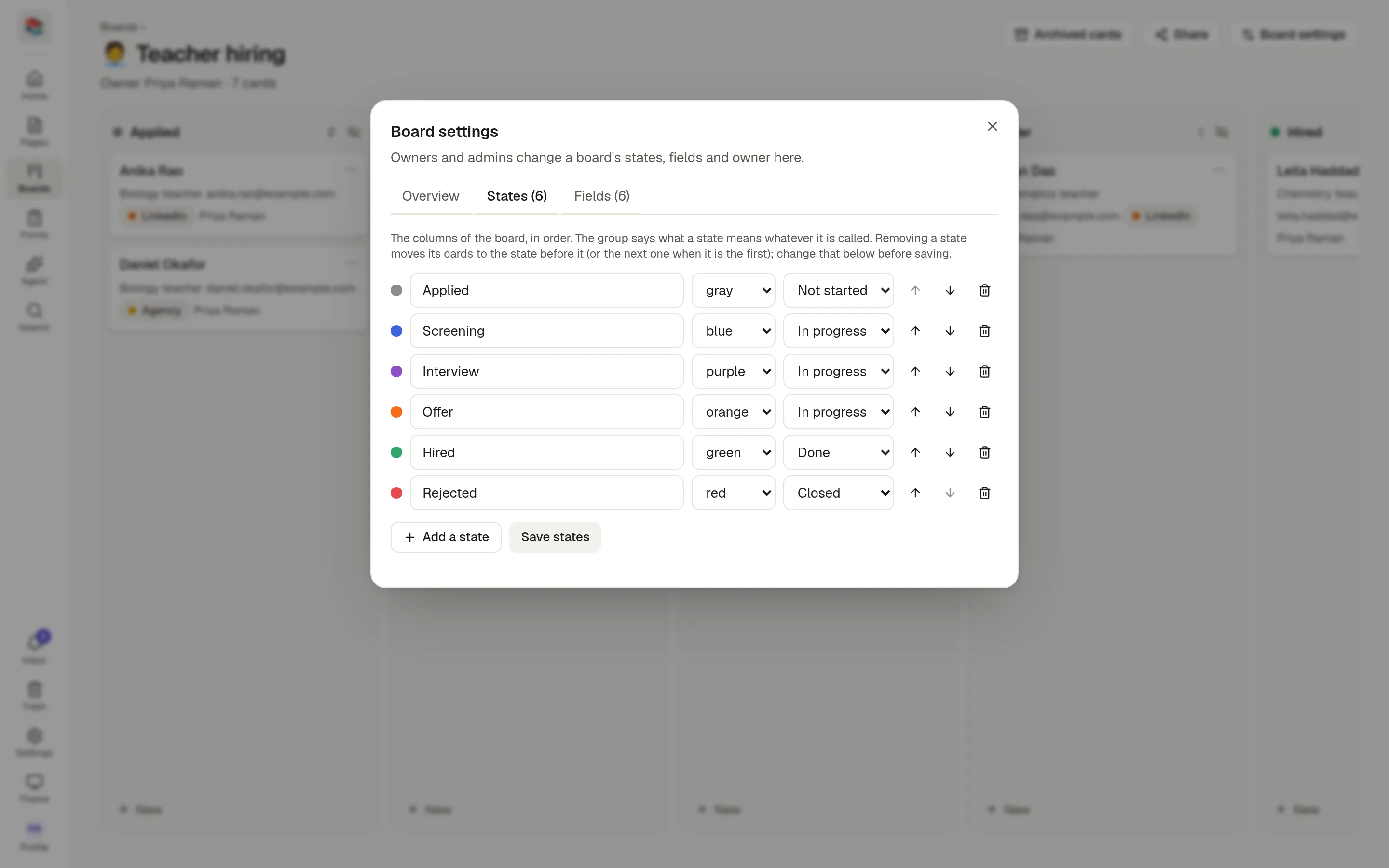
States
States are the columns, in order. For each one you can:
Rename it and pick a colour.
Choose its group: Not started, In progress, Done or Closed. The group says what a state means, so "open work" means the same on every board.
Move it up or down, or add and remove states.
Click Save states when you are done.
Removing a state moves its cards to the state before it, or to the next one if it was the first. The window shows this before you save, and you can change where the cards go.
Fields
The fields tab lists the fields on the board.
Turn On card on for up to four fields to show them on the card in the board.
Add a field from your workspace's 🏷️ Fields.
Remove a field to take it off the board. This also deletes its values on this board's cards, and NoteMaker counts them and asks you to confirm first. The field stays in the library and on other pages.
Changes here save at once.