Take a page out of NoteMaker as a file, or print it.
Export one page
Open the page.
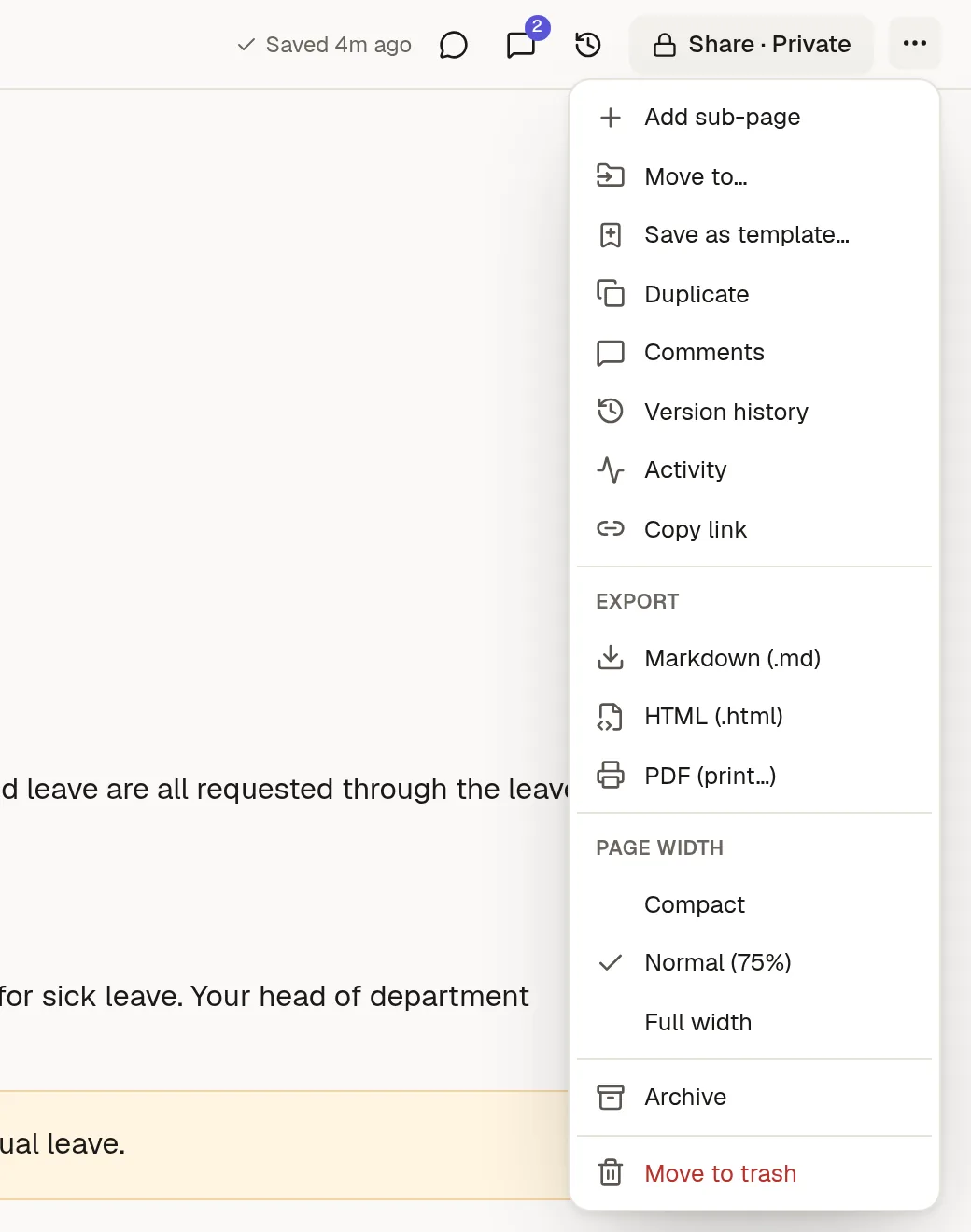
Open its ⋯ menu in the top bar.
Under Export, choose a format:
Markdown (.md): plain text with simple formatting marks. Good for other note tools, and for keeping a copy anywhere.
HTML (.html): a single web page you can open in any browser. Diagrams are drawn when the file is opened, which needs an internet connection.
PDF (print…): opens a print view. Choose Save as PDF in your browser's print window.
What is included
The page's text, headings, lists, tables, callouts and images. Comments are not included in the file.
Export more than one page
To take a whole collection with all its sub-collections, use Export collection from the collection's menu. It is prepared in the background, and you are told when it is ready. See 🗂️ Collections and sub-pages.
Exporting is still possible when a workspace is read-only, for example after a plan has ended, so your content always stays yours.