Publish a page or a whole collection and anyone with the link can read it, without signing in. Use it for documentation, help centres, announcements and public notes.
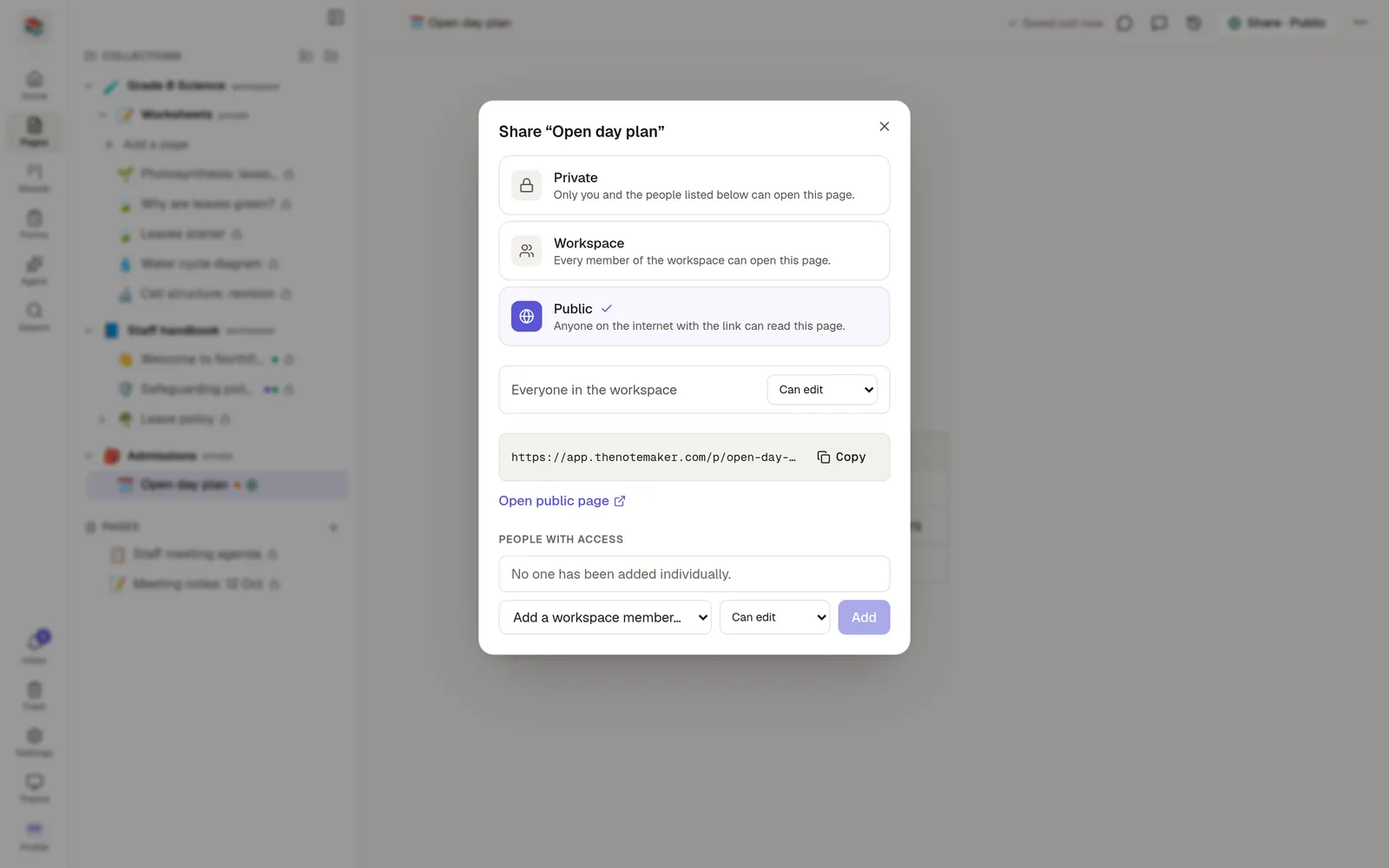
Publish a page
Open the page and click Share.
Turn on Publish to the web.
Copy the address that appears, or use Copy public link from the page's ⋯ menu.
The address looks like /p/your-page-name. You can edit the last part of it. Unpublish at any time and the address stops working.
Publish a collection
Open the collection's Share window and publish it. The collection gets its own address, /c/your-collection, with a navigation tree of its pages. Sub-collections that are public appear in the tree too.
Publishing a collection also publishes the pages inside it, so check them first.
What readers see
The page as you wrote it, in light or dark mode following their device.
A search box (Ctrl+K or Cmd+K) that searches only the published pages of that collection.
No comments, no editing and no sharing controls.
What stays out
Archived pages go offline while archived and come back when restored. Cards on boards can never be public. Pages that are private to someone else are never shown, even inside a published collection.
Your own address
Your administrator can serve a published collection on your own domain, for example docs.yourcompany.com. This is set up under Settings → Domains by a workspace owner or admin. Once the domain is active, the /c/ and /p/ addresses redirect to it.
Anything on a published page is public, including images and the text of quizzes with their answers. Read the page as a stranger would before you publish.