See your plan, pay for it, change it and download invoices. Only workspace owners and admins can open Settings → Billing. It appears once online payments are switched on for the instance, or when the workspace has already paid.
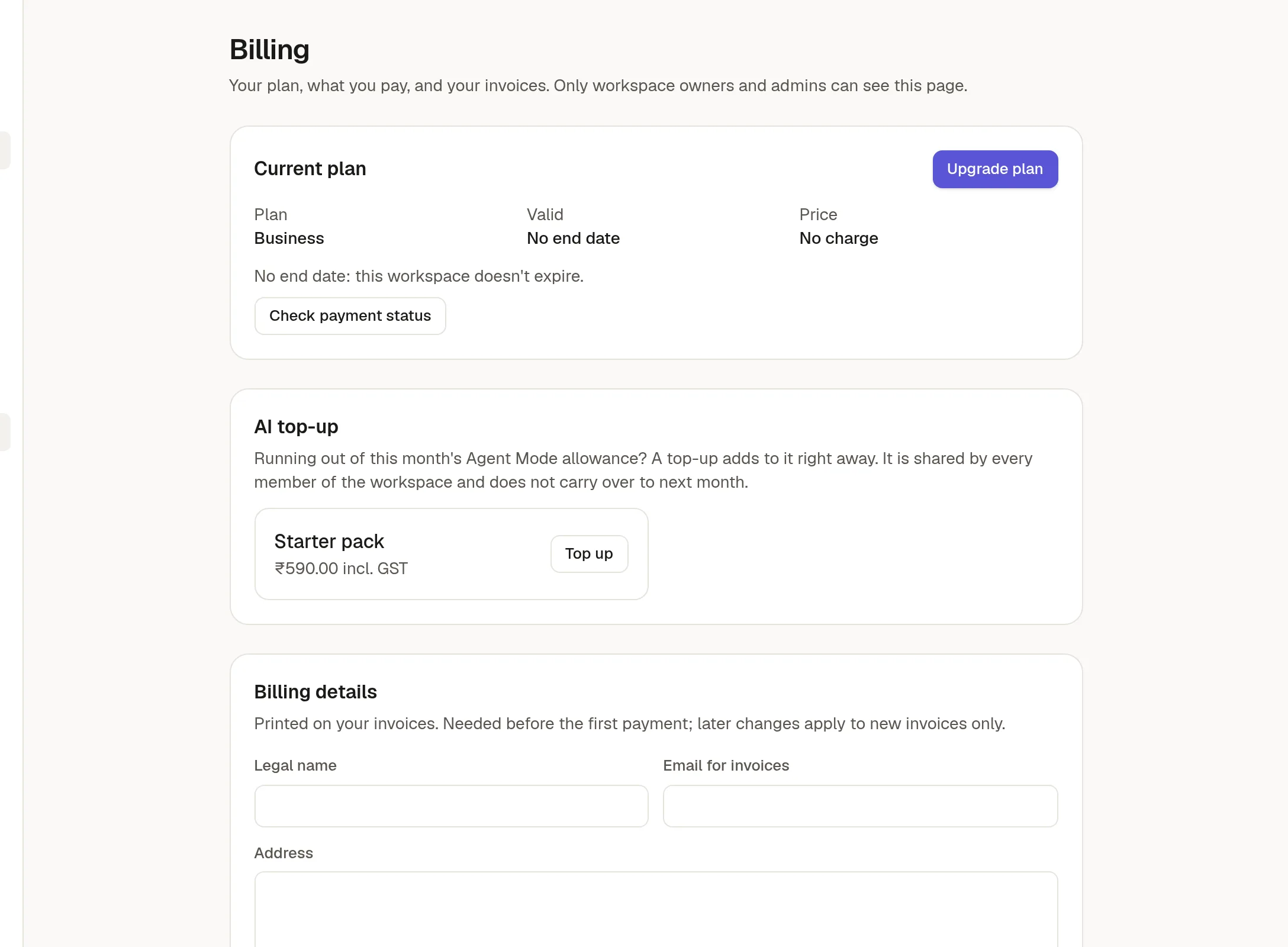
Your plan
The top card shows your plan, until when it is valid, and its price. If something looks wrong after you paid, click Check payment status.
Pay for a plan
Fill in Billing details: legal name, the email for invoices, address, state and, if you have one, your tax number. They are needed before the first payment and print on your invoices.
Click Upgrade plan, choose a plan and pay in the secure payment window.
Monthly plans renew by themselves. Yearly plans are paid once for the year. Your plan starts when the payment is confirmed, which can take a moment.
Change your plan
Upgrade: the bigger plan starts at once. You pay the difference for the days left in the current period, and the period's end date stays the same.
Downgrade: starts at the next renewal. It is refused while you use more than the smaller plan allows, such as members, forms, domains or storage, so reduce those first.
Stop renewing: your plan keeps working until its end date and then stops. This cannot be undone before the end date; you subscribe again afterwards.
AI top-up
If the workspace is about to use up its monthly Agent Mode allowance, a top-up pack adds to it straight away. It is shared by every member and does not carry over to next month.
Invoices
Every payment has an invoice you can open and print. Owners and admins also get a notice in the inbox, and by email, for each payment and for any payment that fails. If a refund is issued, a credit note is created for the tax part. Refunds are handled by your instance's administrator, not in this screen.
When the plan ends
After the end date the workspace keeps working for a short grace period, then becomes read-only. See 📊 Usage and plan limits.