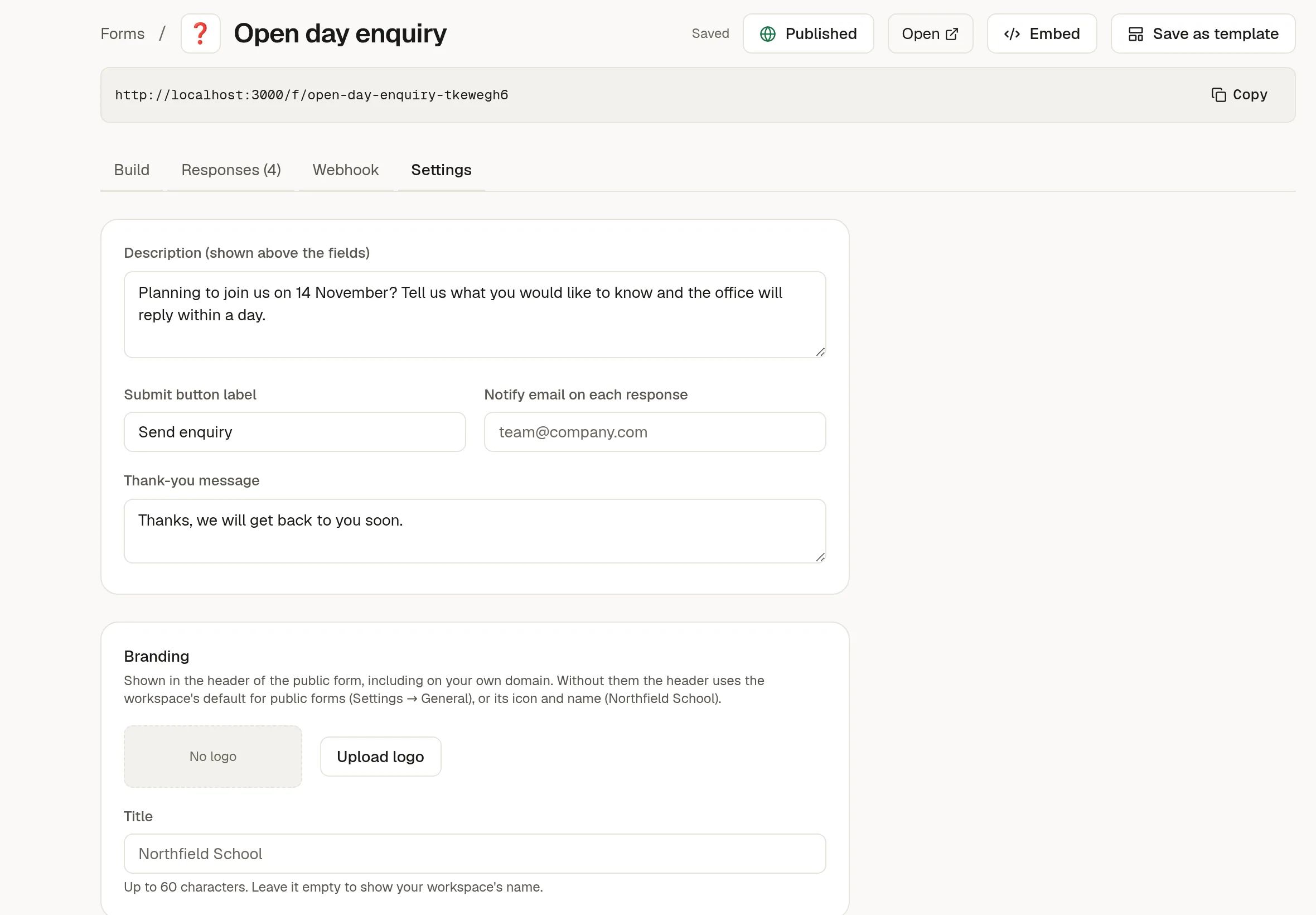
Decide who hears about a new response, and whether the person who filled the form gets a thank-you. Both are on the form's Settings tab.
What visitors see
Description appears above the fields.
Submit button label is the text on the button.
Thank-you message is shown on screen after they submit.
Email yourself
Type an address in Notify email on each response. NoteMaker sends one email for every response with each question and answer. Replies go to the first email address the visitor typed in the form.
Email only works once your administrator has set up outgoing mail for the instance.
Thank the respondent
Switch on Email a thank-you to the respondent to send a short message to the address in the form's first email field.
You write the subject and the message. The email never repeats what they typed.
Replies go to your notify address, if you set one.
It is limited to 3 emails per recipient and 60 per form each hour. Extra ones are skipped quietly, and the response is still saved.
The settings show a warning when mail is not set up or the form has no email field.
Because the form is public, turn on bot protection too. It stops a script from making your form email strangers.