Connect other systems to Agent Mode, so it can read your code or use tools your team already has. Owners and admins set this up in Settings → Tools.
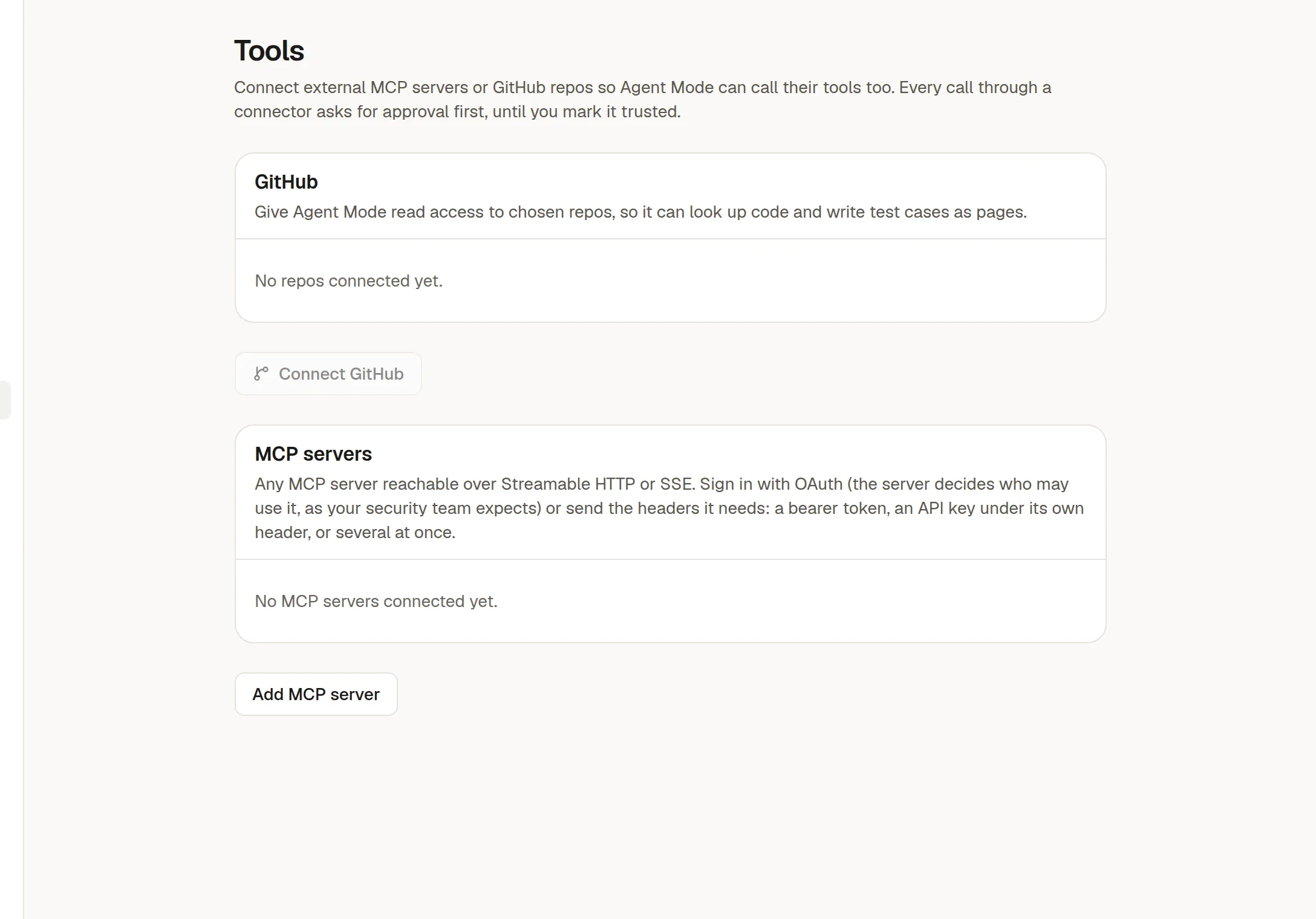
GitHub
Let the agent read repositories you choose.
Click Connect GitHub. You go to GitHub to pick the account and the repositories to share.
Back in NoteMaker, click Show repos on the connection to see what the agent can reach.
The agent can then list files, read them and search code, and look at pull requests: their size, files changed, comments and check results. It cannot change your code. The Reviewer agent can also post a review comment on a pull request, but only after you approve it every time, and it never approves or requests changes.
It only sees the repositories you picked. Disconnect uninstalls the app from GitHub as well, not just in NoteMaker.
The button is disabled until your instance administrator has set up the GitHub app once for the whole instance.
MCP servers
An MCP server is a service that offers tools to AI assistants, for example a ticket system. Click Add MCP server and enter its address, which must be public. Then choose how it signs you in:
OAuth. The server decides who may use it. Either each member signs in with their own account, so the agent never has more access than that person, or an owner or admin signs in once for the whole workspace.
Headers. Enter the header names and values the server expects, such as an API key under its own header name. Values are stored encrypted and never shown again.
Click Test to open the connection and see how many tools it offers.
Approvals
A connector's tools ask for approval every time, even in Auto, until an owner or admin marks the connector trusted. After that they follow the chat's normal Manual or Auto rule.
If a member has not signed in to an OAuth connector, the agent skips its tools and tells them to sign in under Settings → Tools.