A template is a page that already has a layout. Pick one and start filling it in.
Use a template
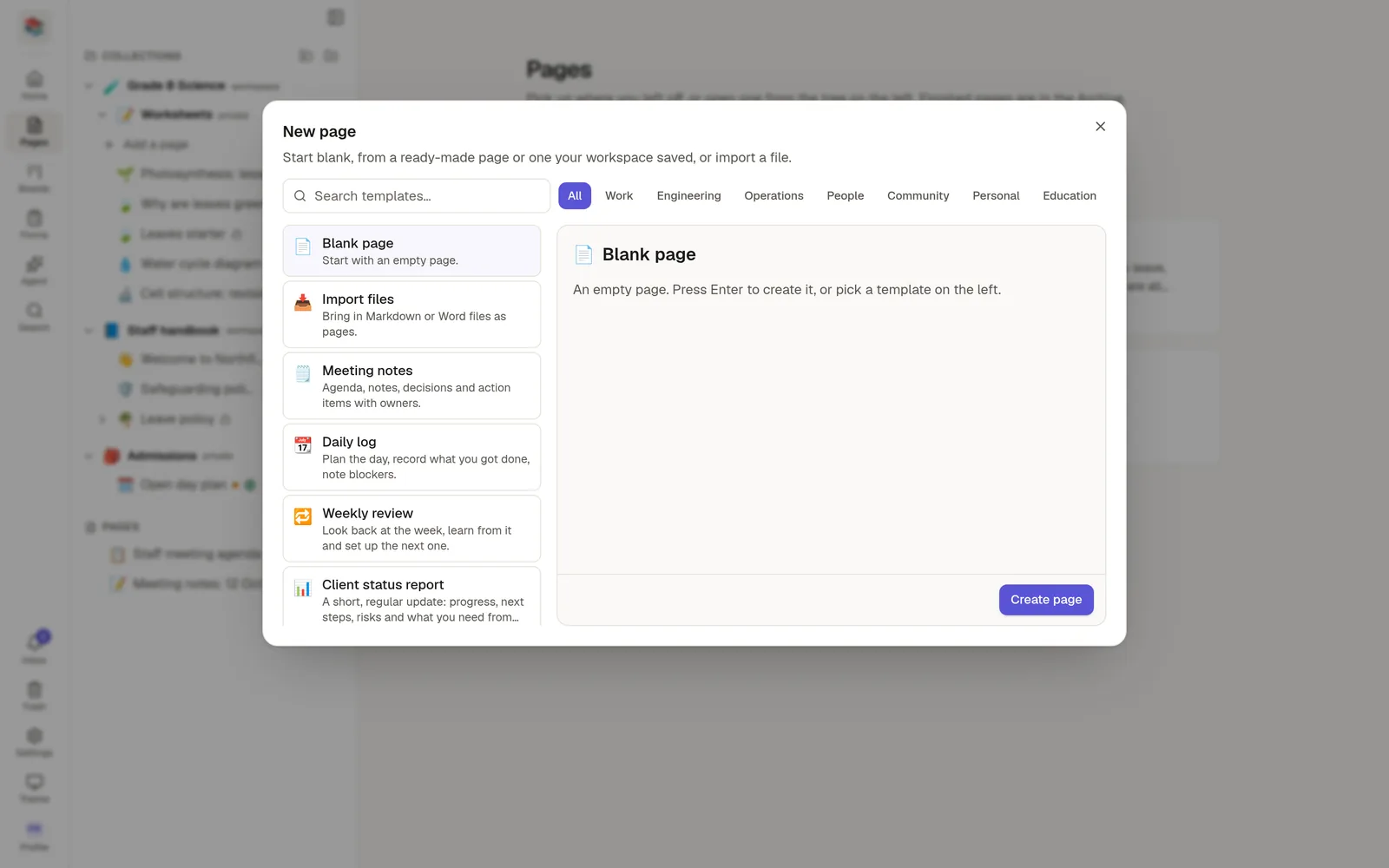
Choose New page anywhere in the app. The window that opens is the template gallery.
Search, or choose a category tab such as Work, Engineering, Operations, People, Community, Personal or Education.
Click a template to see a preview on the right.
Choose Use template.
Blank page is always selected first. Press Enter to create an empty page without looking at templates.
Templates from your workspace
The Workspace tab lists templates your team saved. Anyone in the workspace can start a page from one.
To save your own, open a page and choose Save as template… from its ⋯ menu. Give it a name and a description, and optionally a category so it appears there too.
A saved template is visible to every member of the workspace, not only to you. The dialog reminds you before you save. Anyone who can open the page may save it as a template, and only its author or a workspace admin can delete it.
A template never gives anyone access to anything. The new page follows the same sharing rules as any other page created in that place.
Templates and agents
Agents can use the same templates. Ask one to "start a meeting notes page from the template" and it does.