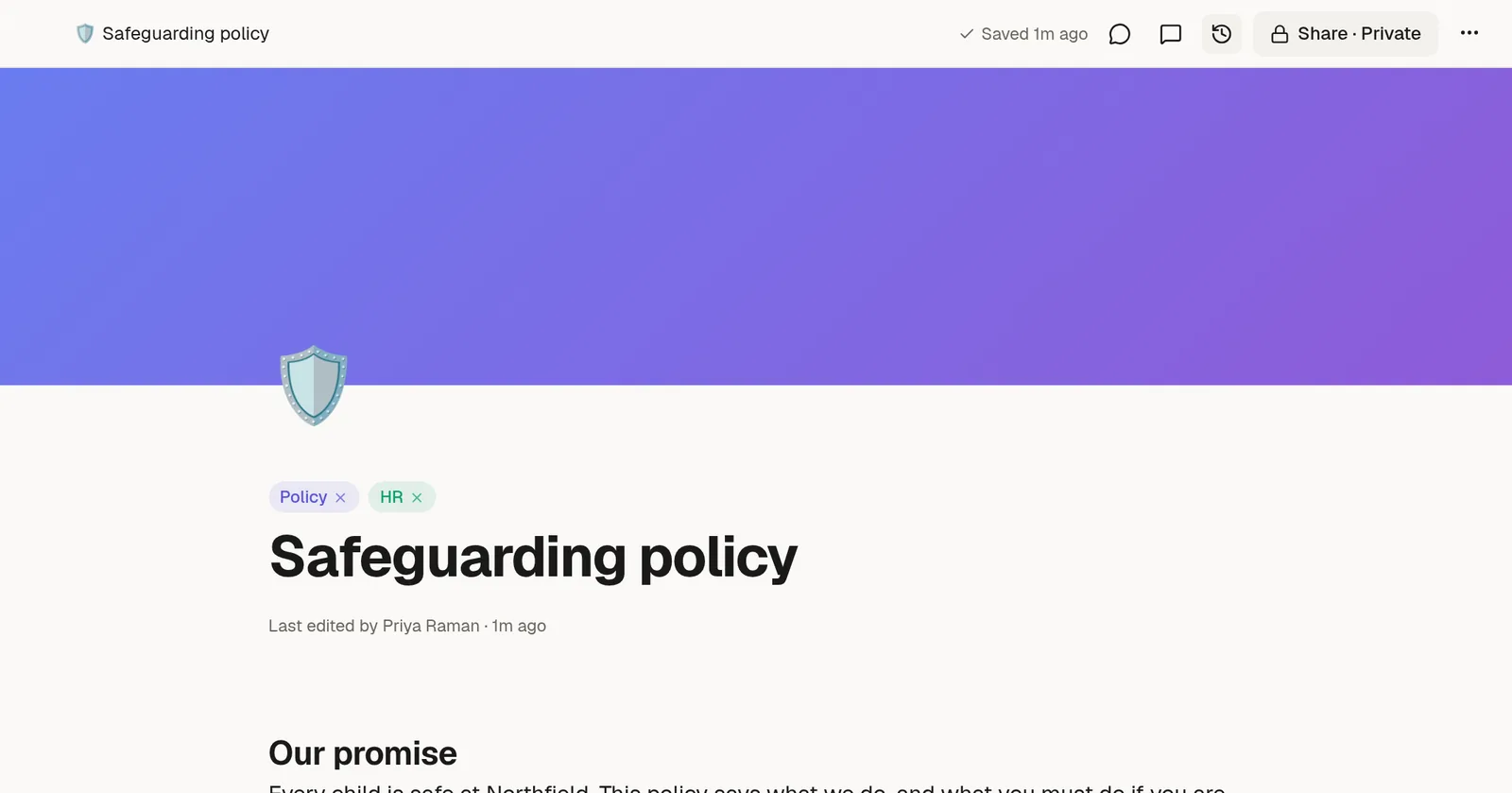
Make a page easy to recognise. Give it an icon and a cover, label it with coloured tags, and choose how wide it is.
Icon
Hover over the space above the title and choose Add icon. Pick an emoji. The icon shows in the Pages panel, in search results and in page links.
Cover
Choose Add cover to put a picture across the top of the page. You can choose from the gallery, or upload your own. Once there, hover over the cover to Change cover or remove it.
Tags
Choose Add tags to label the page with one or more coloured tags. Use them for status or topic, such as Draft, Policy or Q4.
Page width
Open the page's ⋯ menu and choose a width under Page width:
Compact: a narrow column, best for long reading.
Normal (75%): the default, three quarters of the space.
Full width: the whole space, useful for wide tables and boards.
Width is saved with the page, so everyone sees it the same way.
More about a page
You can also turn a page into a template with Save as template…, duplicate it, or copy its link from the same menu. See 🧩 Start from a template.
Setting a cover on a page for the first time scrolls the page to the top so you can see it.