Every page remembers its earlier versions. Look back at what it said, and go back to it if you need to.
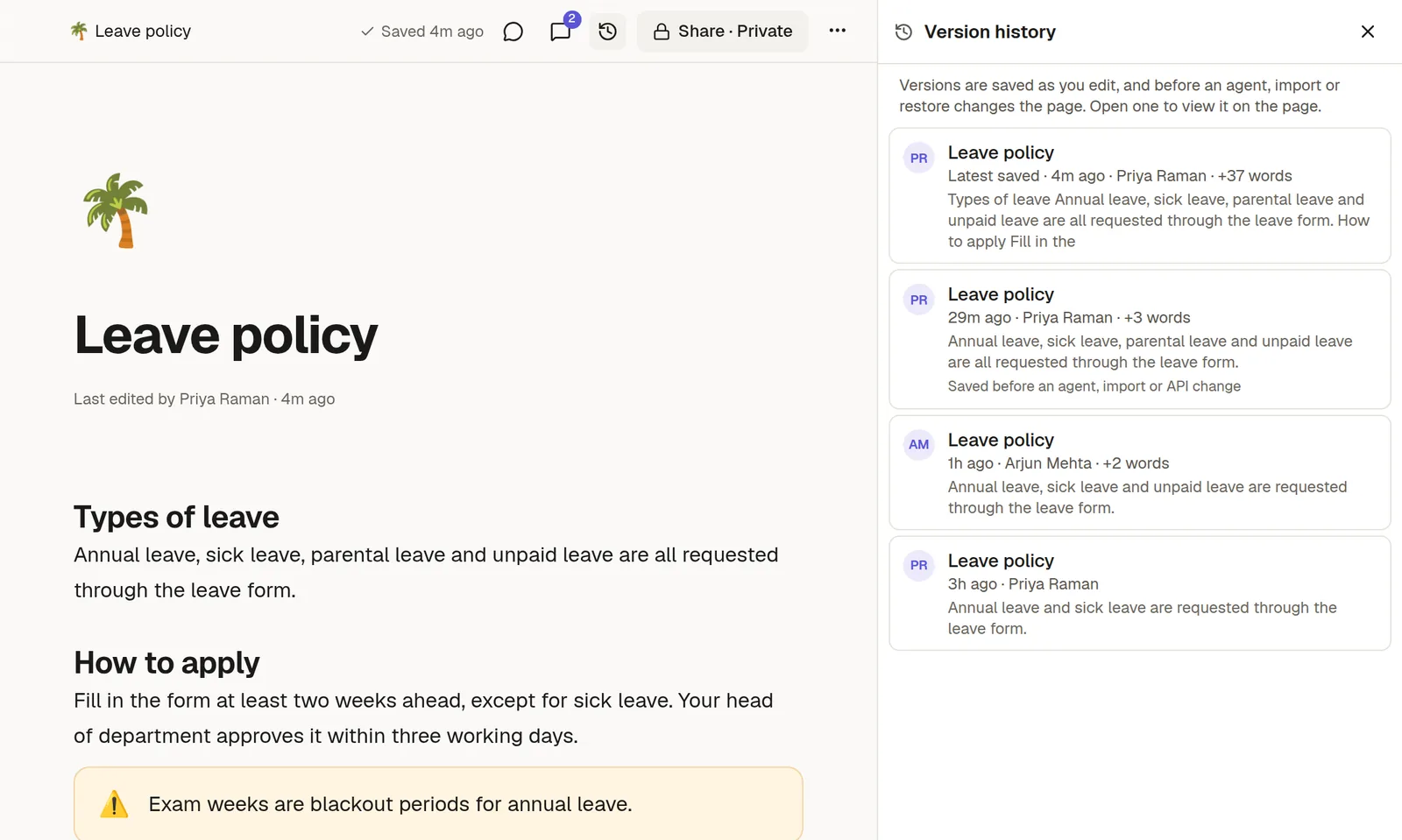
Open the history
Open the page's ⋯ menu and choose Version history. A panel lists versions with the time, who made the change, a short excerpt and a word count.
Preview a version
Click a version to see it on the page in place of the current text. A banner at the top says you are previewing. Choose Back to return to the current page.
Restore a version
While previewing, choose Restore. The page returns to that version's text, title and icon. Cover and width are not changed. The restore goes through the live document, so anyone with the page open sees it happen. Comments attached to restored text stay attached.
Restoring is not final. NoteMaker keeps a copy of what the page looked like just before, so you can undo a restore the same way.
When versions are saved
Automatically, about every ten minutes while the page changes, and sooner when a different person starts editing.
Just before a change made from outside the editor, such as an import, an agent or the API.
Just before a restore.
NoteMaker skips empty pages and versions that are the same as the last one. It keeps the newest 100 versions of each page.
Who can use it
Anyone who can open the page can look at its history. Restoring needs Edit access.
A page's Activity panel is a different thing. It lists who opened, shared or exported the page. The page's author and workspace admins can see it, on plans that include the audit log.