NoteMaker can be used from other AI tools. Claude Code, Cursor, VS Code, Windsurf, Claude Desktop, Codex and others can list, search, read, create and update your pages, boards and forms through MCP. Find the settings in Settings → MCP & API.
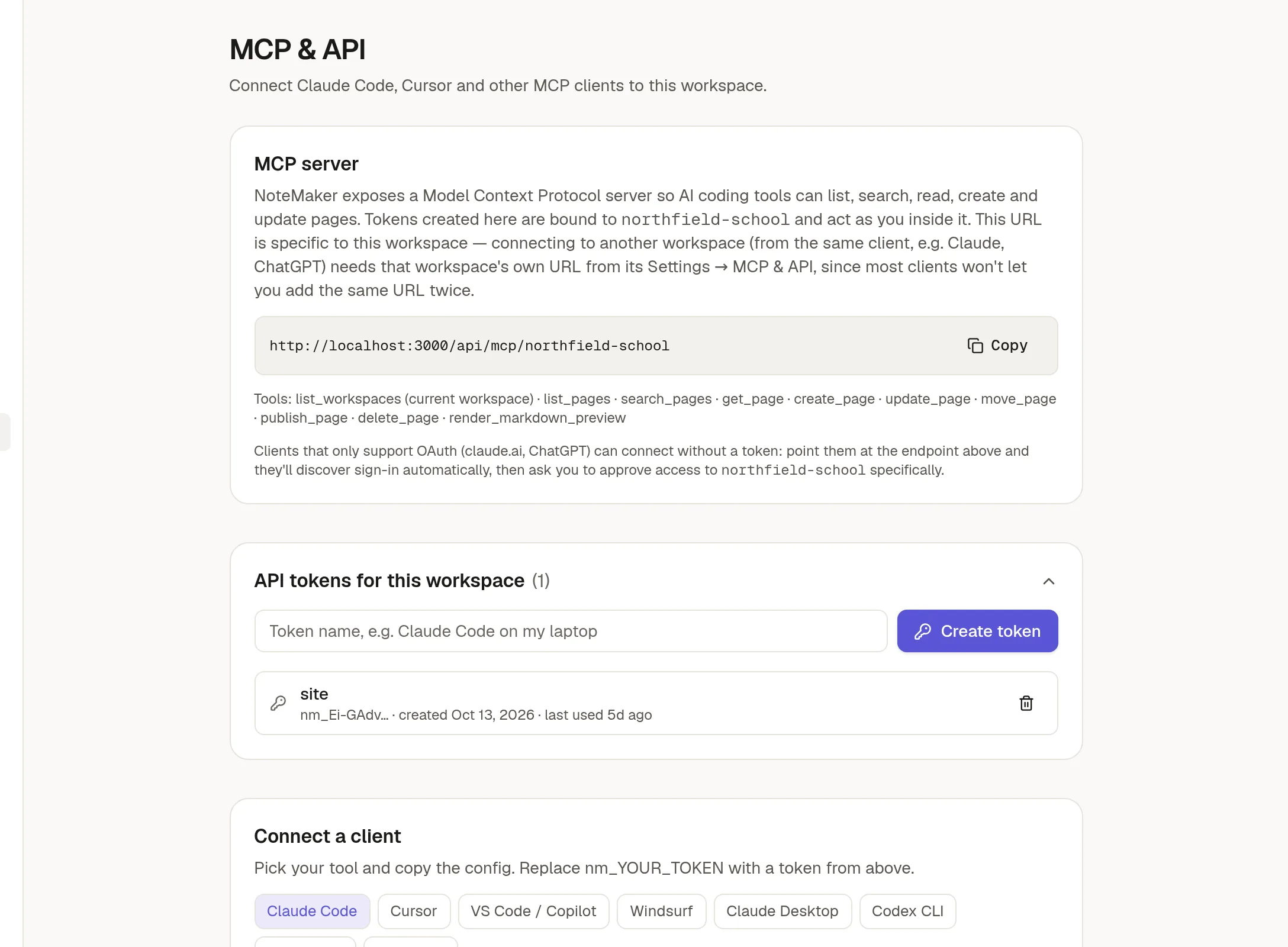
Your workspace's address
The MCP server box shows the address for this workspace, ending in your workspace's name. Click Copy. Each workspace has its own address, so one AI tool can connect to several workspaces at once.
Connect with a token
Under API tokens for this workspace, type a name, such as "Claude Code on my laptop", and click Create token.
Copy the token now. It starts with
nm_and is shown only once.Under Connect a client, pick your tool and copy its setup, replacing
nm_YOUR_TOKENwith the token.
The token list shows when each one was last used. Use the trash icon to revoke one. A token acts as you, inside this workspace only.
Connect without a token
Tools that only support sign-in, such as claude.ai and ChatGPT, can connect with OAuth. Add the workspace's address as a connector. You are taken to NoteMaker to sign in and approve access to that workspace. The connection renews itself.
If the list of tokens grows long, Clean up removes old ones that tools made while renewing.
Treat a token like a password. Anyone who has it can do what you can in this workspace. Revoke it if it leaks.