Take a whole collection, with its sub-collections, out of NoteMaker as a file, or bring one in from a file. Exports and imports run in the background, and Settings → Transfers lists them.
Export a collection
In the Pages panel, open the collection's ⋯ menu and choose Export collection….
Choose whether to include sub-collections and what to do with files:
Package files copies uploaded images and files into the export, so it stands on its own.
Keep links leaves them as links back to NoteMaker and copies nothing.
Confirm. The export is queued.
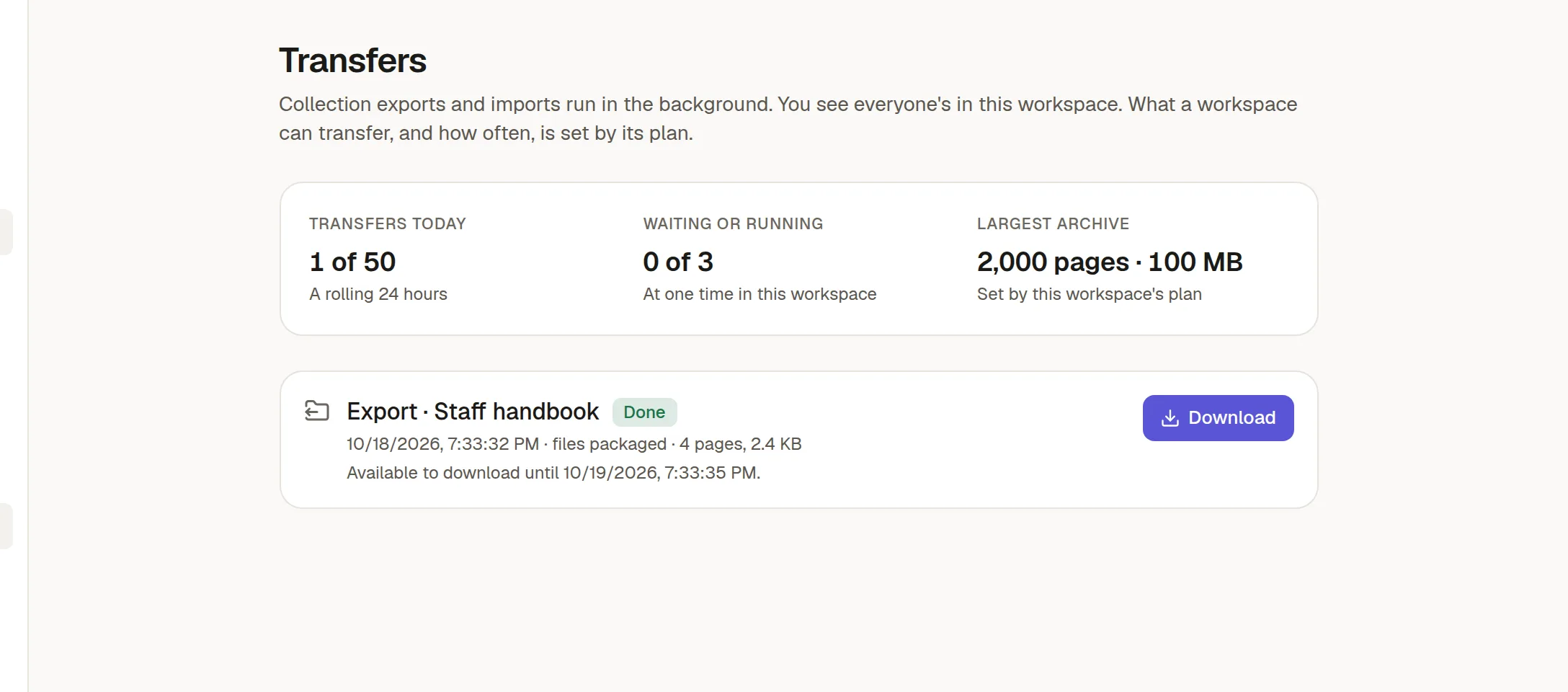
You get a notice when it is ready. Open Settings → Transfers and click Download. The file is a .tar.gz that holds every page as a Markdown file, in the same tree, and it stays available for a day.
Only what you can open is exported, and no people: authors, mentions and comments are left out.
Import a collection
In the Pages panel, click the import icon (Import collection…) in the header.
Choose a
.tar.gzmade by Export collection. It is only read at first and nothing is created until you press Import.Confirm. The import is queued.
The collection comes back as a new collection with your name as the owner, and its pages are private to you. If the name is taken, it becomes "name (2)". If an import fails, everything it had created is removed again.
The Transfers page
It lists every export and import in the workspace with its state, and shows how many transfers have run today against the daily limit, how many are waiting and the largest archive allowed. You can cancel a transfer that has not started.
Limits
Your plan can limit pages and size per archive and how many transfers can run in a day. Exporting also keeps working when a workspace has become read-only.