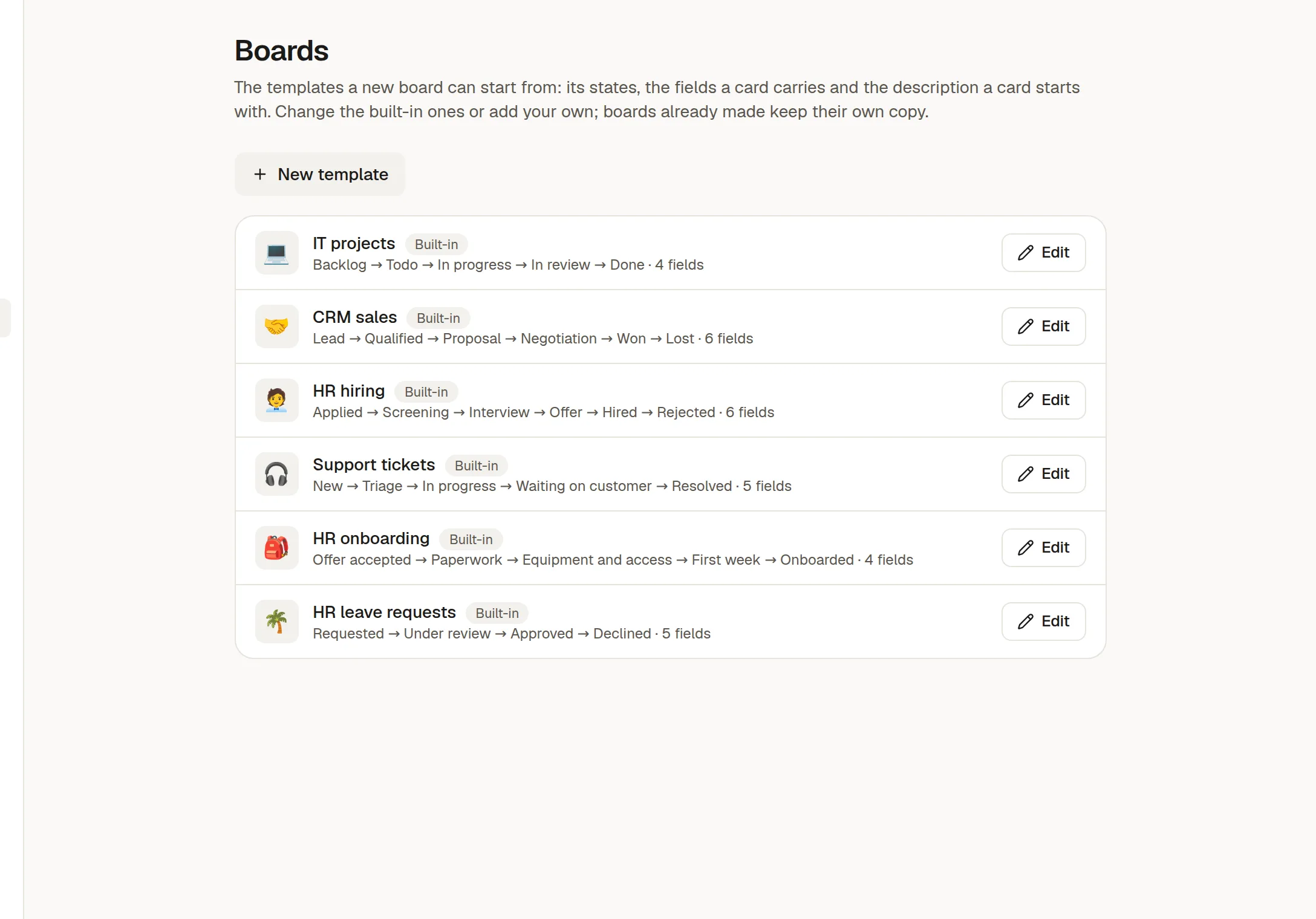
A board template saves the states, fields and card outline of a process, so every new board starts the same way. Owners and admins manage them in Settings → Boards.
What a template holds
States: the columns, with their colours and groups.
Fields: the properties of a card, and which ones show on the card.
Card description: an outline every new card starts with.
Built-in templates
NoteMaker comes with IT projects, CRM sales, HR hiring, Support tickets, HR onboarding and HR leave requests. Each shows its flow of states and how many fields it has.
Make or change one
Click New template, or Edit on an existing one. The editor has three tabs:
Overview: name, description and the card description.
States: rename, recolour, regroup, reorder, add and remove.
Fields: one row per field with its type, options (a comma-separated list) and whether it shows on the card.
Editing a built-in template makes your workspace's own copy that replaces the original in the list. Reset brings the original back. You can keep up to 50 templates of your own.
How a board uses it
A board copies the template when you create it. Changing or deleting the template later does not touch boards that already exist, and each board can still change its own states and fields.
Template fields are matched with your 🏷️ Fields by name and type. A match is reused. A missing field is created, if your plan allows. A field that cannot be used, for example the same name with another type, is left out and NoteMaker tells you.