The Build tab is a canvas. Add fields, arrange them in rows and set what each one asks for. There is no save button: changes save as you make them.
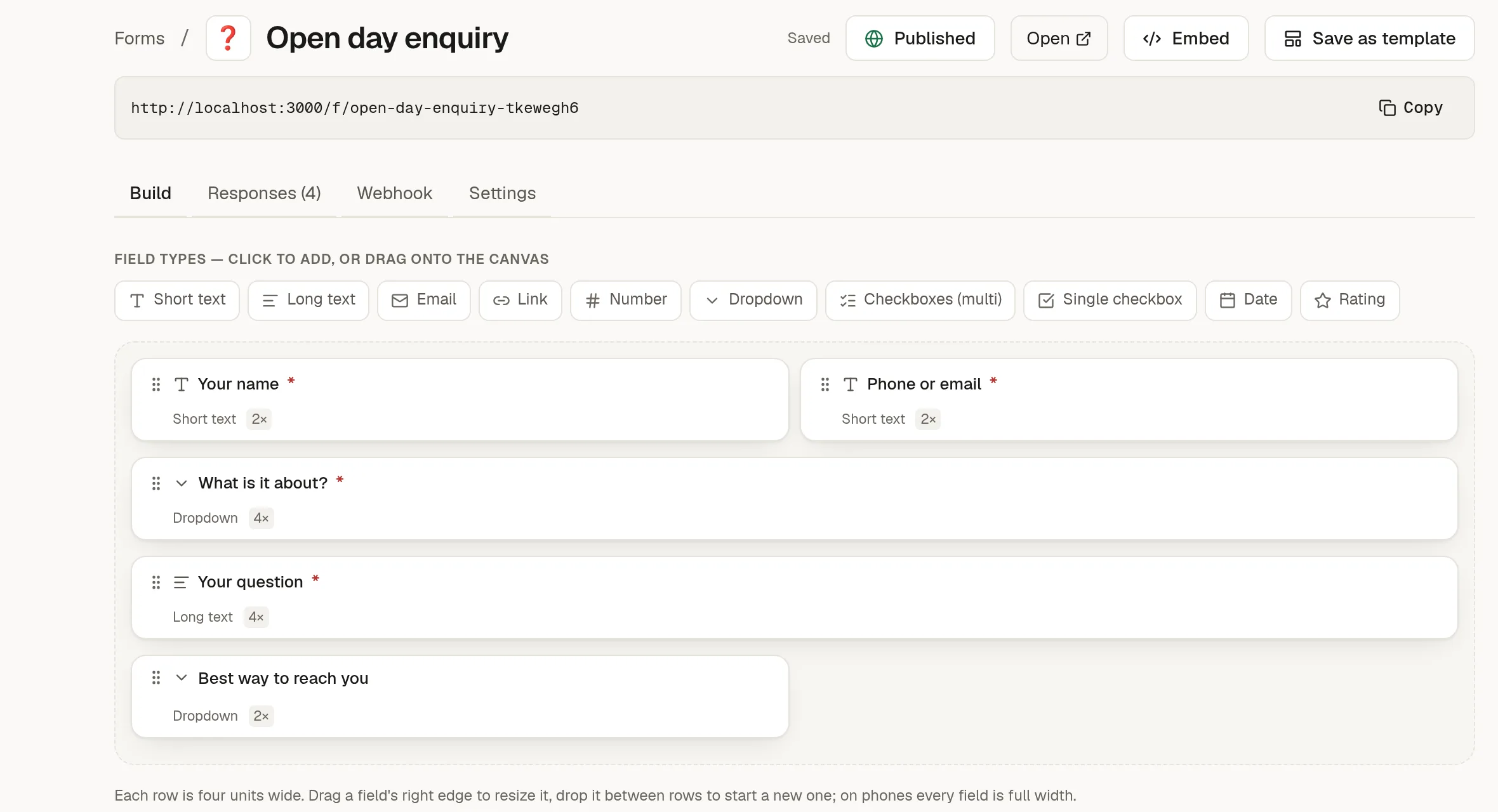
Add fields
Click a field type to add it at the end, or drag it onto the canvas where you want it.
Short text, Long text
Email, Link, Number
Dropdown, Checkboxes (several answers), Single checkbox
Date, Rating
Arrange them
Each row is four units wide, and each field takes one to four of them.
Drag a field by its handle to move it. Drop it on the left or right half of another field to place it beside that one.
Drop it between rows to start a new row.
Drag a field's right edge to make it wider or narrower.
On a phone, and in a narrow embed, every field is full width.
Set up a field
Click a field to open its details: label, type, width, whether it starts a new row, whether it is required, placeholder, help text, and the options for a dropdown or checkboxes. You can also duplicate, delete or move it from there.
Placeholder and help text are shown to the people filling in the form. Do not use them for notes to yourself.