Keep responses in a table, or turn each one into a card on a board. Both are on the form's Settings tab.
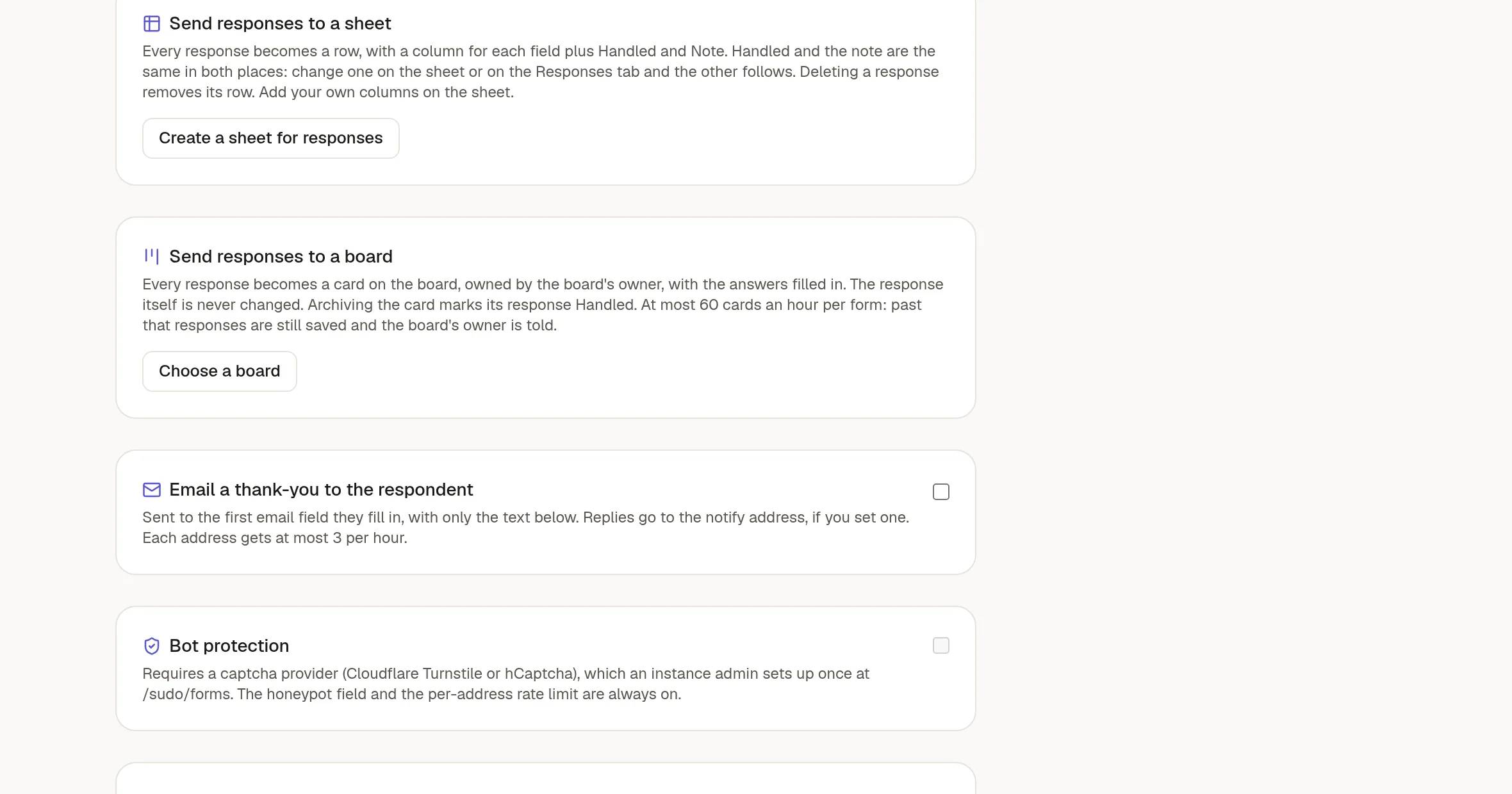
Send responses to a sheet
Click Create a sheet for responses. NoteMaker makes a sheet with one column for each field of the form, and adds a row for every new response.
Two extra columns, Handled and Note, stay in step with the Responses tab. Tick one in either place and the other follows.
If you add fields to the form later, click Add missing columns.
Unlink stops new rows but keeps the ones already there.
This works on every plan.
Send responses to a board
Click Choose a board. You can pick any board you can edit. Then set:
The state new cards start in.
The card title. Use a field's label in curly braces, such as
{Name} applies for {Position}.Which answer goes in which card field. NoteMaker fills this in by name and type. Each card field can be used once.
A page template for the card body, if you want one.
People to notify when a card arrives. Only people who can open the board are kept.
Every response then becomes a card, owned by the board's owner, in that state. Answers you did not map are listed under Answers in the card.
What a visitor types is always plain text. A link, an image or an @mention in an answer stays as typed and does not become live.
Good to know
At most 60 cards an hour are created per form. Past that, responses are still saved and the board's owner is told.
Archiving a card marks its response Handled.
Earlier responses do not become cards. Only new ones do.
Disconnect keeps the cards already made. Deleting the board disconnects the form by itself.
You need to manage the form and be able to edit the board.