Connect pages to each other, and bring people and agents into a page with @.
Link to another page
Type /link and pick a page from the list, or select text and use the link button in the toolbar for a web address. A page link shows the page's icon and title. If the page is renamed later, the link follows the new name.
You can only link to pages you can open. Someone reading your page needs access to the linked page too.
Add a sub-page
Type /sub-page to create a new page inside the current one and put a link to it right where you are typing.
Mention a person
Type @ and start typing a name. Choose a teammate and a chip appears with their name.
When the page is saved, that person gets a message in their 🔔 Notifications and the inbox with the text around the mention and a link, and an email if your workspace sends email. They are only told once, even if the page is saved many times.
If the person cannot open the page yet, NoteMaker asks whether you want to share it with them first. See 🤝 Share a page or a collection.
Ask an agent
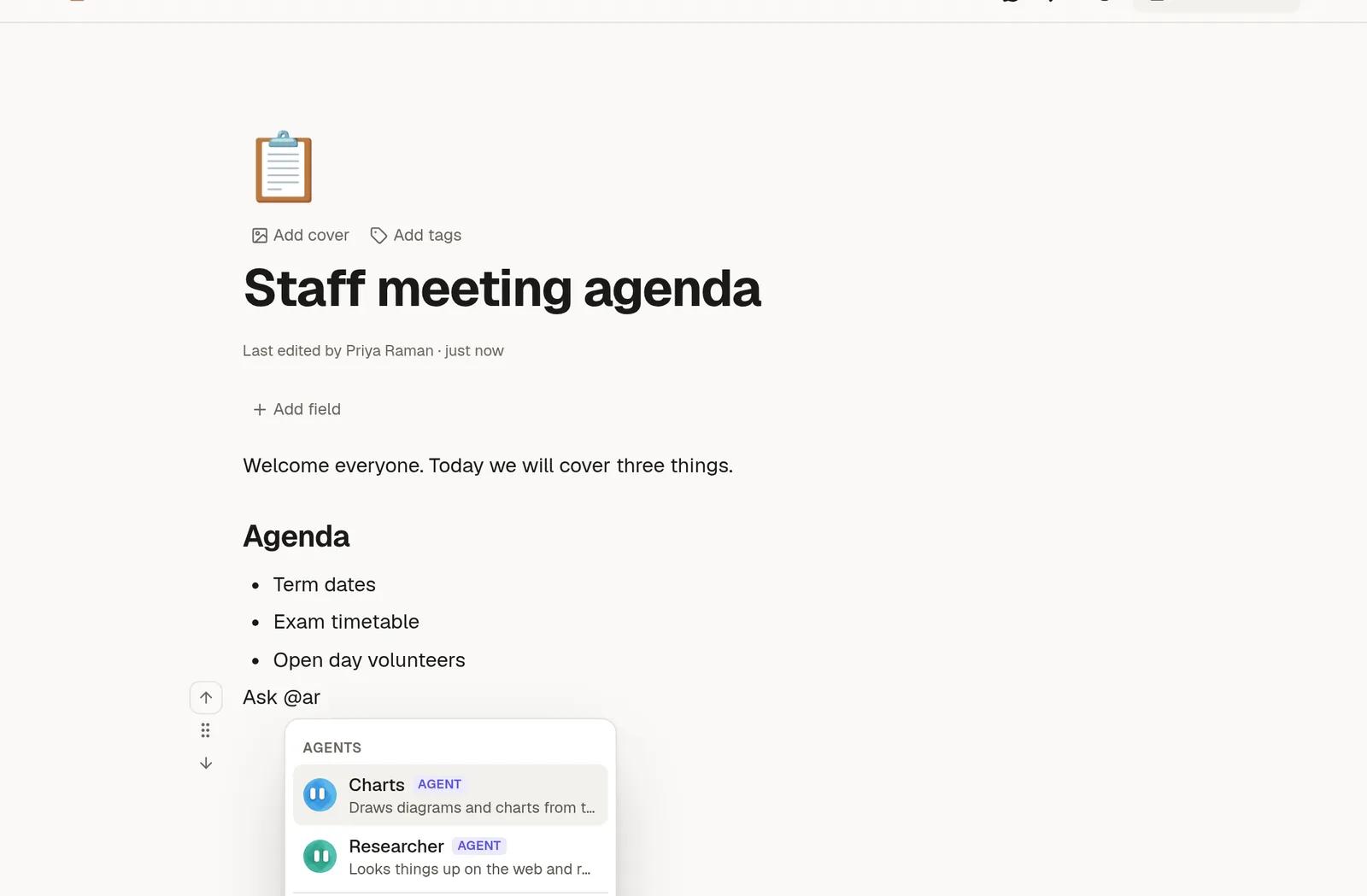
The same @ menu lists the agents in your workspace. Choose one, type what you want after the chip, and press Enter at the end of the line. The line turns into a request, and the agent writes its answer into the page when it is done. A chip on its own, without any text, does nothing.
Agents can only see what the person who asked can see.