Create a page, give it a title and start writing. NoteMaker saves as you type.
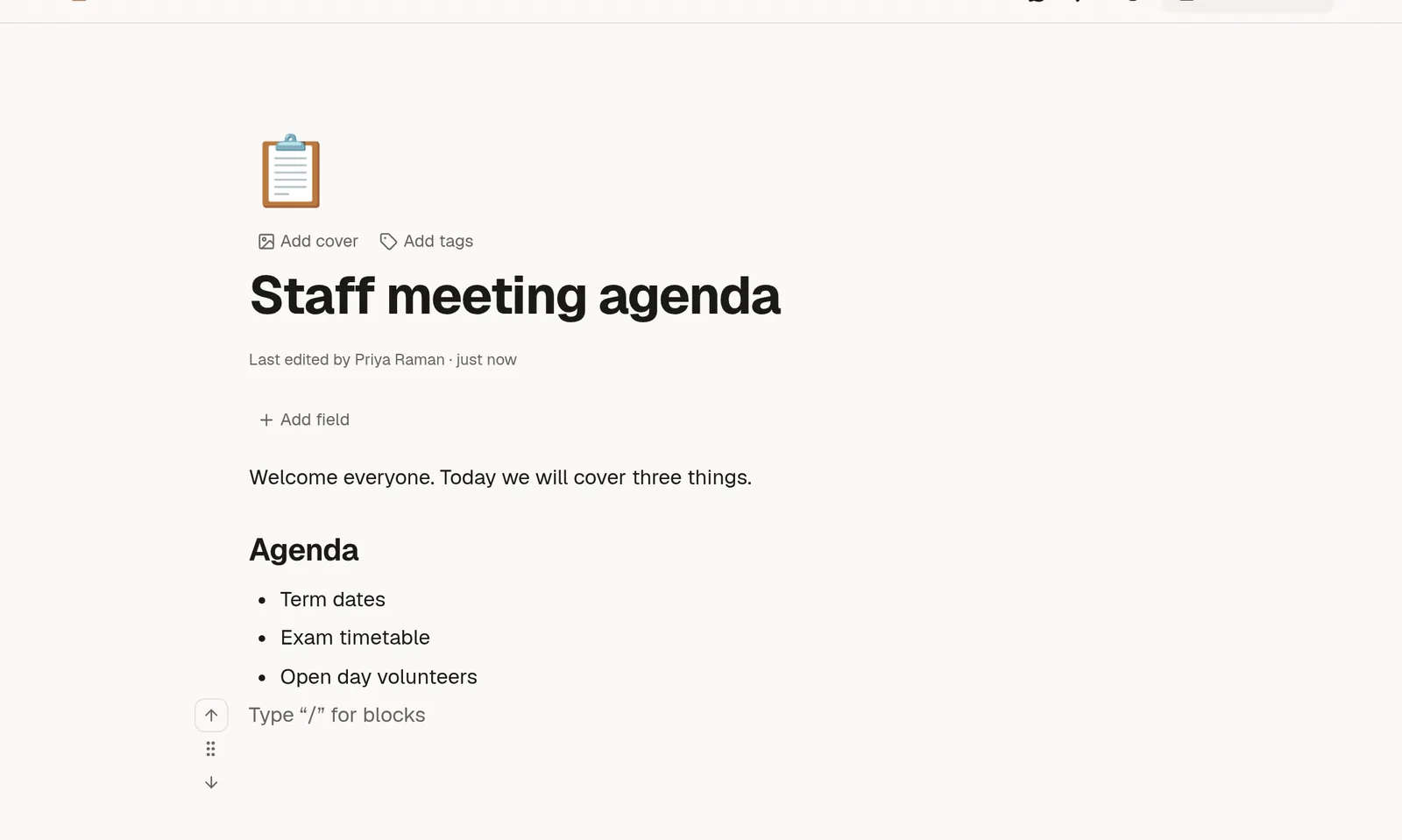
Create the page
Click Pages in the left rail.
Choose New page. A window opens with Blank page already selected.
Press Enter, or choose Create page.
The new page opens with the cursor in the title. To start from a ready-made layout instead, see 🧩 Start from a template.
Write
Type a title, then press Enter to move into the body and start typing.
You can format as you write with a few shortcuts:
Type
##and a space for a heading. One#makes a bigger heading, three make a smaller one.Type
-and a space for a bullet list, or1.and a space for a numbered list.Type
/on an empty line to open the block menu. It lists everything you can add: tables, callouts, images, diagrams and more. ⌨️ The editor and the slash menu shows them all.
Saving
There is no Save button. The top bar shows Saved just now each time your change is stored. If someone else opens the same page, you will see their cursor and name, and you can both type at once.
Make it yours
Above the title you can add an icon, a cover and tags. See 🎨 Icon, cover, tags and width.
Where the page lives
A new page sits under Pages in the side panel. To keep related pages together, put them in a collection, or nest a page under another with Add sub-page from the page's ⋯ menu. 🗂️ Collections and sub-pages explains both.
New pages are private. Only you can open them until you share them. See 🤝 Share a page or a collection.
Made a mistake? Press Ctrl+Z (Cmd+Z on a Mac) to undo. Every page also keeps a 🕘 Version history you can go back to.