A published form has a public address that anyone can open, no account needed. You can also embed it in another page or website.
Publish
Click Published in the form's header to switch it on or off. The form's address appears under the title, with a Copy button. Open shows the form as visitors see it. Switch it off and the address stops working.
Embed it
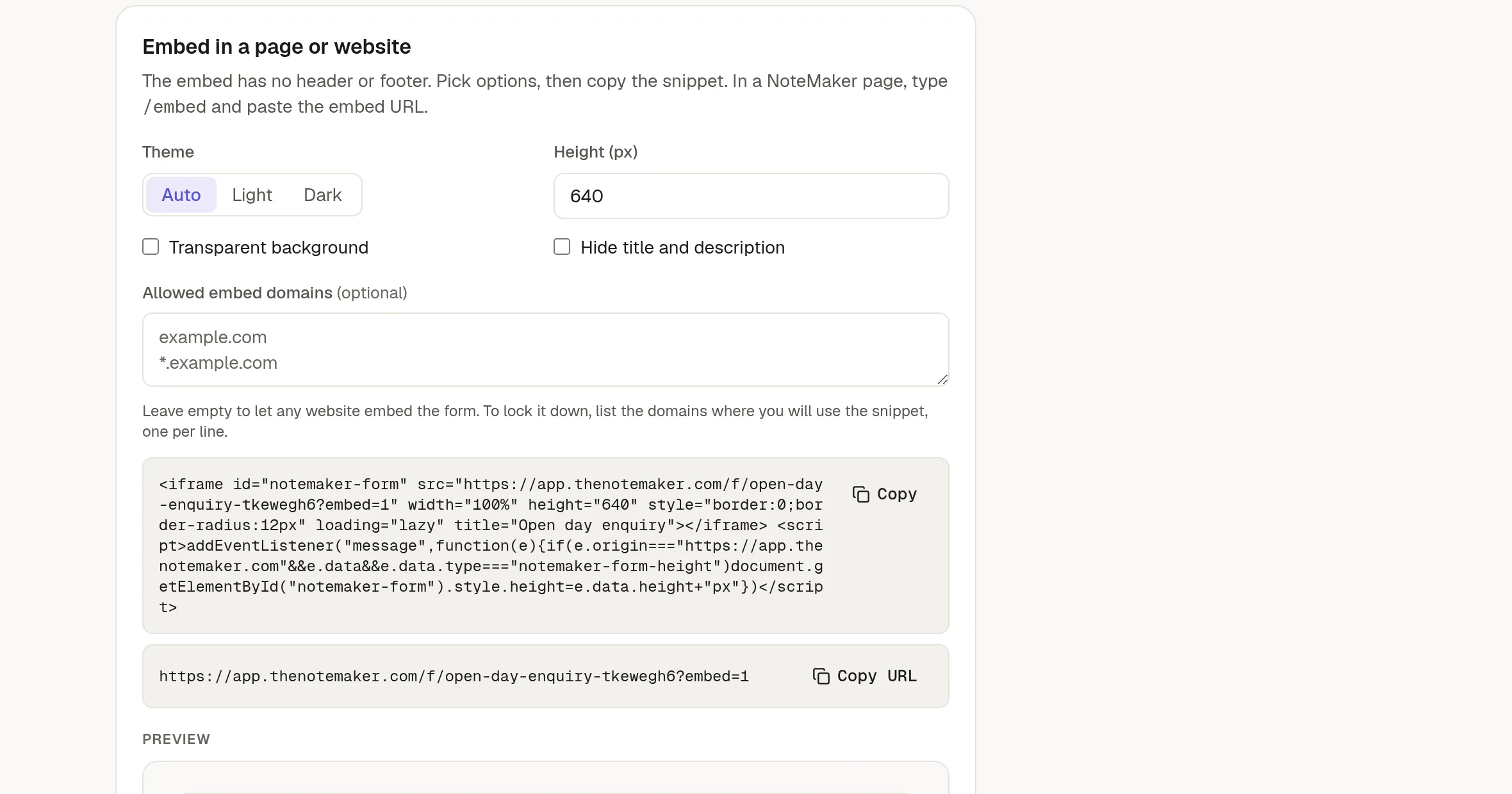
Click Embed in the header, or go to the Settings tab and find Embed in a page or website.
Choose a Theme: Auto, Light or Dark.
Set the Height, and choose whether the background is transparent and whether to hide the title and description.
Copy the snippet and paste it where you want the form.
The snippet includes a small script that resizes the frame to fit the form, so it works on phones too. In a NoteMaker page, type /embed and paste the Copy URL address instead.
Choose where it can be embedded
Allowed embed domains is optional. Leave it empty and any website can embed the form. To lock it down, list the domains you will use, one per line.
Protect it from spam
Every form drops submissions that fill a hidden trap field and limits how often one address can submit. Under Bot protection you can also ask visitors to pass a captcha, once your administrator has set up Cloudflare Turnstile or hCaptcha for the instance.
Your own address
Owners and admins can serve forms from your own domain. See the domains settings of your workspace, if your plan includes them.