Add pictures, recordings and live content to a page. You can upload, paste a link, or drag a file onto the page.
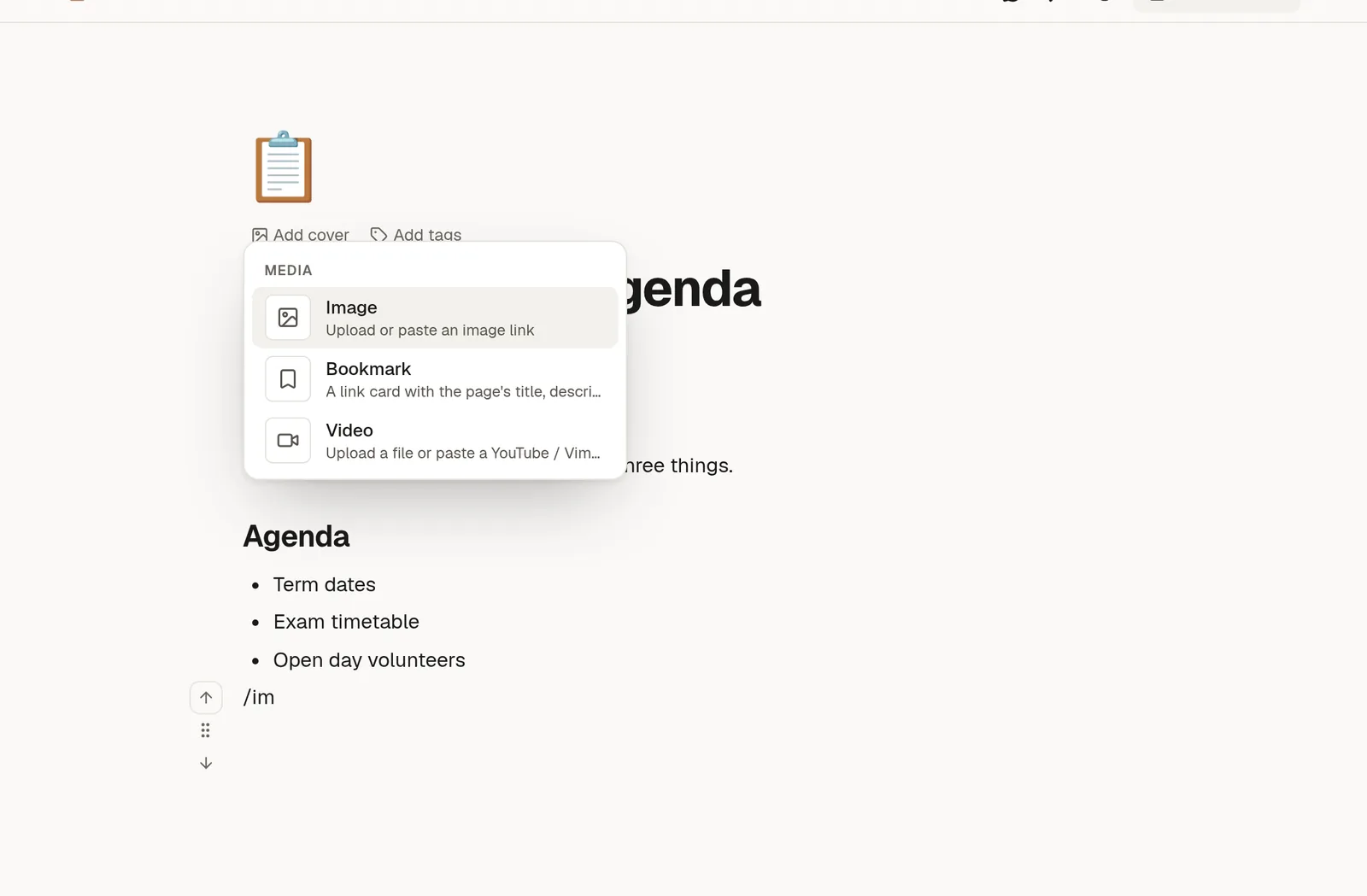
Images
Type /image, then upload a file or paste an image address. You can also paste or drop an image straight into the page.
Click an image to change how it sits:
Drag the grip on its right edge to resize it.
Choose S, M, L or Full to set it to a share of the column.
Align it left, centre or right when it is narrower than the column.
Video and audio
Type /video or /audio. The easiest way is to paste a link. YouTube, Vimeo and Loom links play inside the page, and so do many podcast and music sites. You can also upload a file, but video uploads are kept smaller than other files.
Embed a web page
Embed web page shows another page inside yours, for example a map or a form. Paste the address and it appears in a frame.
Some sites do not allow other sites to show them in a frame. When that happens NoteMaker tells you, and offers Add as a link card instead.
Bookmarks
Bookmark turns a link into a card with the site's title, description and picture. The card is read once when you add it, so it still looks right if the other site goes offline. If a site blocks the preview, you can type the title and description yourself with Edit details.
Upload limits
Your administrator sets the largest file you can upload. NoteMaker checks the size before sending, and tells you the limit if a file is too big. Uploads also count against your workspace's storage allowance, which you can see under Settings → Usage.
Public pages show images to everyone who has the link. Do not add an image to a page you plan to publish unless you are happy for it to be public.