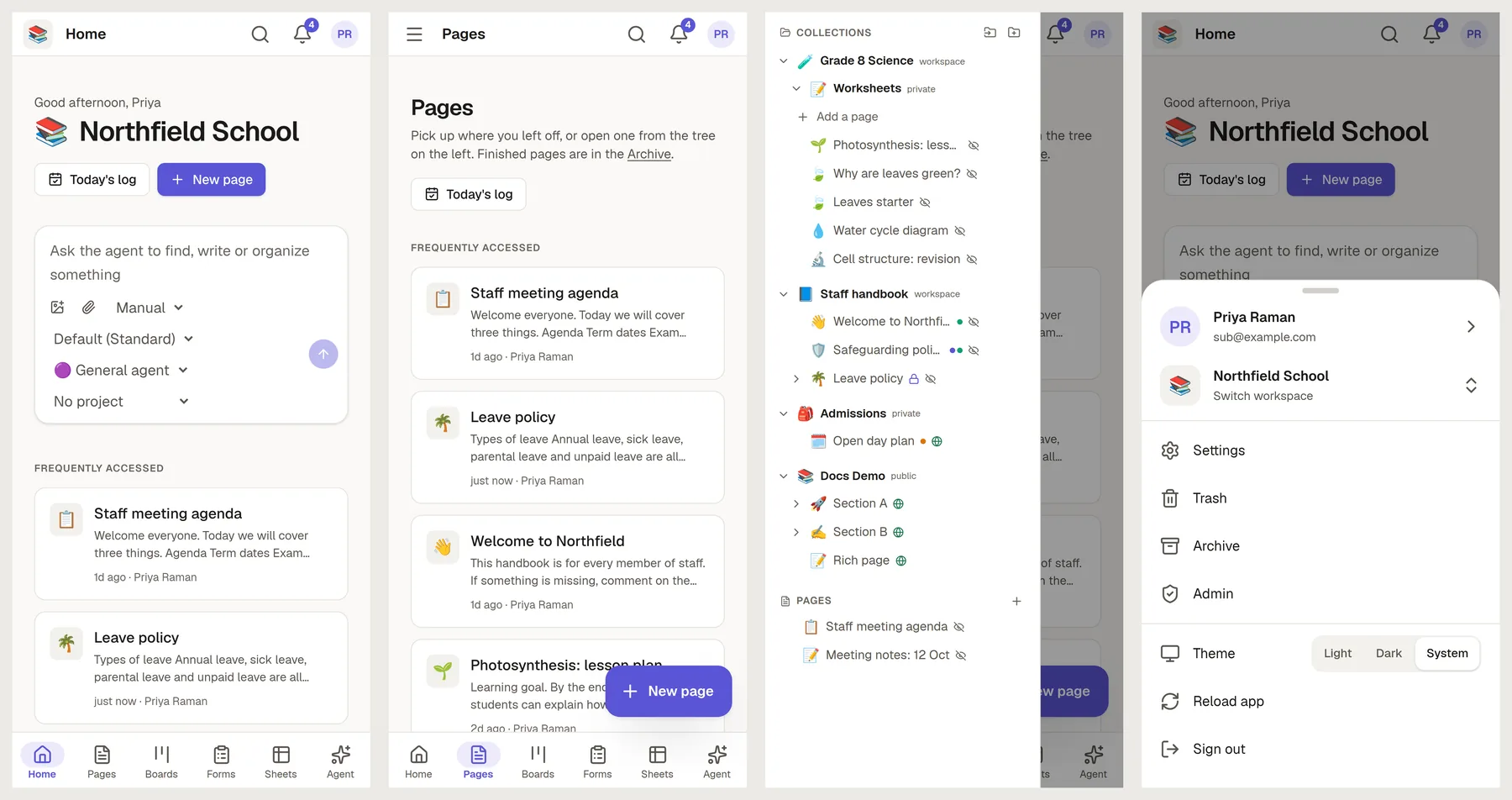
NoteMaker works in your phone's browser and can be installed like an app. On a small screen the layout changes: a bottom bar for the places you use most, a top bar for search, your inbox and your account, and one floating button to create things.
Install it as an app
iPhone and iPad (Safari): tap Share, then Add to Home Screen.
Android (Chrome): open the browser menu and choose Install app (or Add to Home screen).
A computer (Chrome or Edge): click the install icon at the right end of the address bar.
An installed NoteMaker opens in its own window, without browser bars. Links to other NoteMaker pages open in that same window instead of starting a second one. On Android and on a computer, pressing and holding the app icon offers shortcuts to Search, Inbox, Pages and Forms.
NoteMaker does not keep your pages on the phone, so it needs a connection. Without one it shows a short "You're offline" page.
The bottom bar
The bar at the bottom takes you between the places of your workspace: Home, Pages, Boards, Forms, Sheets and Agent. Only the ones your workspace has appear, and the one you are in is highlighted.
The bar steps out of the way while the on-screen keyboard is open, and returns when you finish typing.
The top bar
The button on the left opens the menu of the area you are in: the tree of pages on Pages, your chats on Agent, the list of settings on Settings and your account on Profile. On screens with no menu, it switches workspace instead.
The title tells you where you are.
Search opens the same box as Ctrl+K on a computer, for finding things and running commands. See 🔎 Find anything with search.
Inbox shows the number of unread messages.
Your picture opens the account sheet.
Where there is a menu you can also swipe in from the left edge of the screen to open it. Tap a link in it, or tap outside it, to close it again.
The account sheet
Tap your picture at the top right. The sheet holds what the rail keeps at its bottom on a computer:
Profile, and a way to switch workspace,
Settings, Trash and Archive, and Admin if you administer your NoteMaker,
Theme: Light, Dark or System,
Reload app, which fetches the newest version,
Sign out.
When a new version of NoteMaker is released while the app is open, a bar at the bottom says so and offers Reload. An installed app has no reload button of its own, so use that bar or Reload app.
Create things
On Pages, Boards, Forms and Sheets a round button at the bottom right adds a new page, board, form or sheet. On a computer the same action is a button at the top of the screen.
Chat with the agent
A conversation in Agent Mode takes the whole screen. Its header has the list of chats, New chat and the options menu. The bottom bar stays, so you can always leave the chat for another place. See 💬 Chat with Agent Mode.
Write on a phone
Type as you would on a computer. On a touch device a floating Scribble button also lets you write by hand straight onto the page. See 📐 Diagrams and handwriting. To move a page on a phone, use Move to… from its menu instead of dragging.
Save a link from another app
Once NoteMaker is installed, it appears in the Share menu of other apps on Android and on iPhone. Share a web link or some text to NoteMaker and a screen titled Save what you shared opens with:
a Title and an optional note, both of which you can edit,
the Link that came with it,
Save in, to choose the workspace,
Save as a new page.
Nothing is saved until you press the button. The new page is private to you, with the link as a card, until you share it.