A lock freezes something on purpose. Nobody can change it, its author included, and no agent can either, until its creator or a workspace admin unlocks it. Use it for things that must stay exactly as they are, such as a policy, your published documentation or a support form.
What you can lock
A page, on its own or together with its sub-pages.
A collection, with everything inside it.
A card on a board. A card is a page, so it locks like one.
A form.
Lock and unlock a page
Open the page's ⋯ menu, or its menu in the Pages panel, and choose Lock page. A locked page offers Unlock page instead. If the page has sub-pages you also get Lock page and sub-pages and Unlock page and sub-pages.
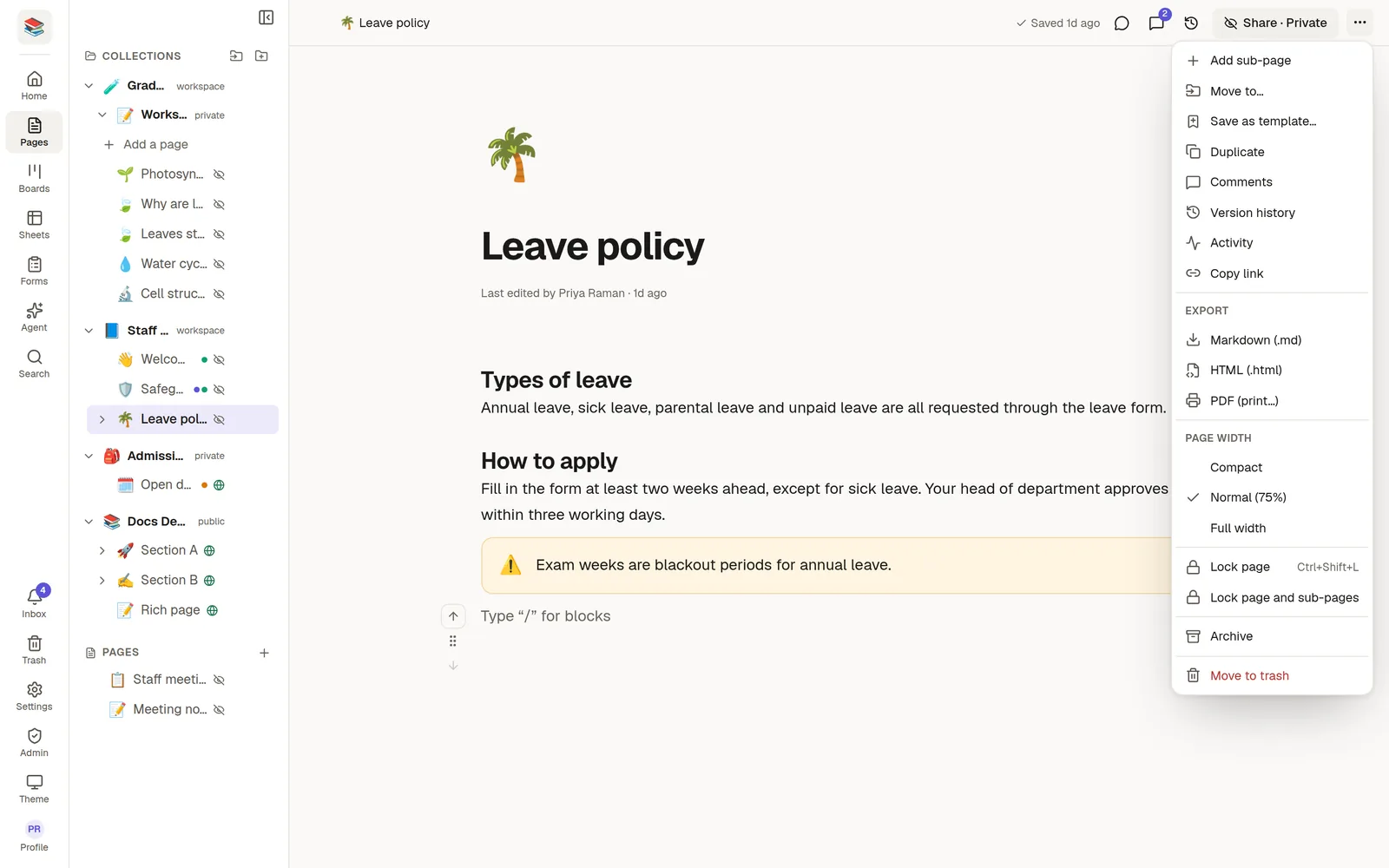
With a page open, press Ctrl+Shift+L to lock it and Ctrl+Shift+U to unlock it (Cmd instead of Ctrl on a Mac).
There is no confirmation window. The lock takes effect at once and a short message at the bottom of the screen says so. Anyone who has the page open sees it turn read-only without reloading.
A locked page shows a lock icon in the Pages panel and a Locked button in its top bar. Point at the button and it reads Unlock; click it to unlock. Its tooltip says who locked the page and when. People who cannot unlock the page see a note on the page that explains why it is locked.
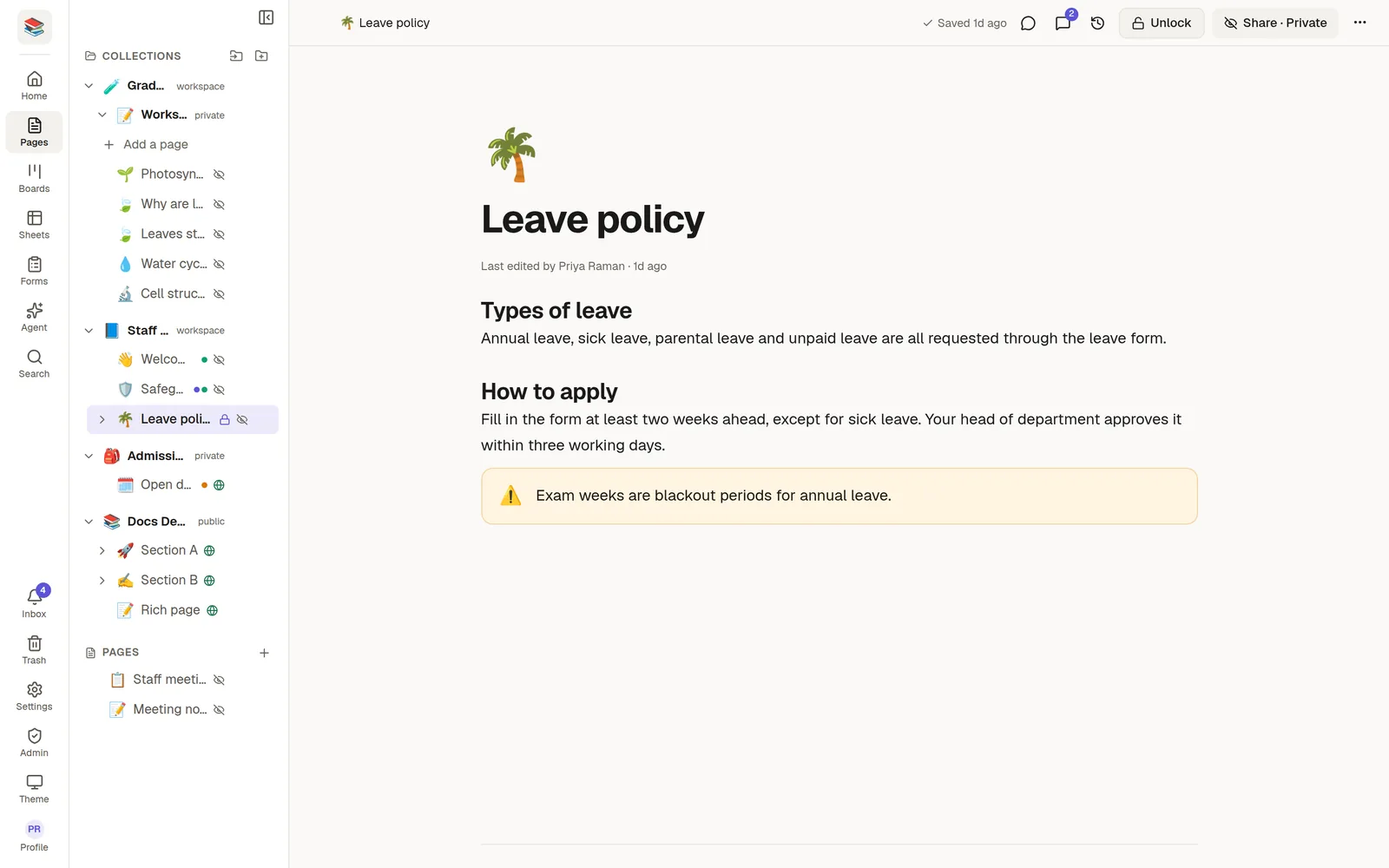
A lock on a page does not reach its sub-pages by itself. Choose Lock page and sub-pages to lock the whole branch.
What a lock stops, and what it does not
Stopped on a locked page | Still works |
|---|---|
Typing, title, icon, cover, tags and fields | Reading and printing |
Adding sub-pages | Comments, for people who may comment |
Moving the page | Sharing and publishing |
Restoring an older version | Exporting |
Archiving, moving to the trash and deleting | Making a copy (the copy is not locked) |
If a locked page sits inside a page you archive or delete, the whole action is refused until the lock is lifted.
Lock a collection
Open the collection's menu in the Pages panel and choose Lock collection and its pages. A collection lock always takes everything inside it: its sub-collections and every page. Nothing can be added, renamed, moved or deleted. A lock icon appears beside the name, and the collection's own page has a Lock button that turns into Unlock.
Unlock collection and its pages lifts all of it in one step, including pages that were locked on their own earlier.
A collection that holds a locked page cannot be deleted.
Lock a form
Open the form and click Lock in its header. A locked form keeps its design and settings: you cannot change its fields, publish or unpublish it, change the webhook, notifications or the sheet and board links, or delete it.
It keeps collecting responses. You can still read them, mark them handled, add notes, delete a single response, send a test to the webhook and save the form as a template. The form's author and workspace admins still see every tab, read-only, so the embed code stays within reach.
Cards on a board
Lock a card from its menu or with Ctrl+Shift+L. A locked card shows a lock icon, cannot be edited and cannot be dragged to another column. A board as a whole cannot be locked; lock its cards.
Who can lock and unlock
The person who created the page, form or collection, and workspace owners and admins. Locking is not one of the sharing levels: being an editor of someone else's page does not let you lock it.
Locks and agents
An agent that tries to change something locked is told that it is locked, and nothing changes.
In an Agent Mode chat the agent may ask you to lift the lock. A card appears saying which page or form, who locked it and when, and the reason the agent gives. Choose Unlock it or Keep it locked. This question is always asked, even in Auto mode, and is never part of Approve all. After you approve, the agent is told to lock it again unless you say otherwise.
From a page (
@an agent) there is nobody to ask, so the request fails with a message that the page is locked.Tools connected through MCP, such as Claude Code or Cursor, can unlock on their own request. NoteMaker adds no prompt of its own there; your tool's approval prompt is the check.
Lock or archive?
I want to… | Use |
|---|---|
Keep a page where it is, visible, and stop changes | Lock |
Put a finished page out of the way but keep it | Archive |
Remove a page | Trash |
Locking and unlocking are recorded in the 🛡️ Audit log.